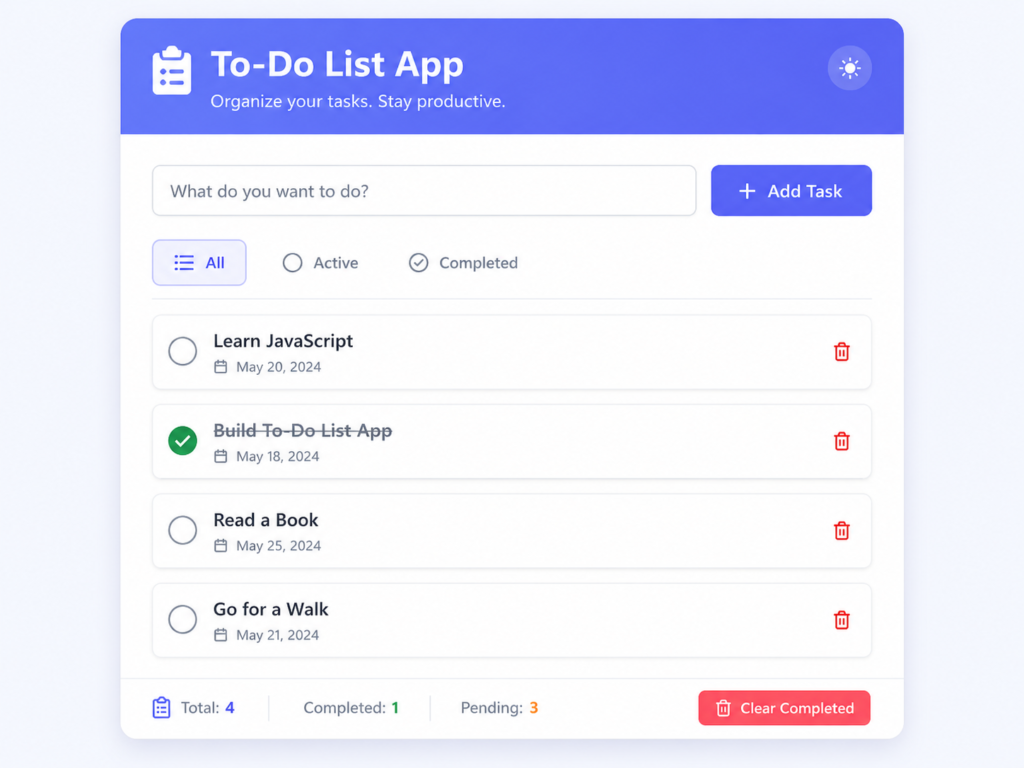

Master the art of building a To-Do List App. From CRUD operations to local storage, learn the core logic and best practices in this expert coding guide
Building a To-Do List App: The Ultimate Programming Guide
We have all been there: a desk covered in sticky notes, a brain buzzing with “don’t forget to buy milk,” and that nagging feeling that something important is slipping through the cracks. In the physical world, we grab a pen. In the digital world, we build a To-Do List App.
If the “Hello World” program is a developer’s first step, and the “Simple Calculator” is their first walk, then building a To-Do List App is their first real hike. It is the quintessential project that transforms a coder into a creator.
In this deep-dive guide, we aren’t just going to look at how to make a list of text on a screen. We are going to explore the architecture of data, the psychology of productivity, and the technical hurdles of making digital information stay put when you refresh the page. Whether you are a beginner or looking to polish your intermediate skills, let’s get to work.
What is a To-Do List App?
At its heart, a To-Do List App is a task management tool that allows a user to keep track of items they need to complete. Technically speaking, it is the perfect playground for learning CRUD.
CRUD stands for:
- Create: Adding a new task.
- Read: Displaying the list of tasks.
- Update: Editing a task or marking it as “complete.”
- Delete: Removing a task from the list.
While it sounds simple, a modern To-Do List App involves managing user input, handling dates, filtering categories, and ensuring that the data persists (stays saved) even after the browser or app is closed.
Why is it Important for Developers?
Why does every coding bootcamp and computer science course insist on this project? It’s because a To-Do List App teaches you the four horsemen of software development:
1. State Management
How does the app “know” that you have three items left? You have to learn how to keep your “Data” (the list of tasks) in sync with your “UI” (what the user sees). If the data says a task is finished but the UI shows it as active, the user loses trust.
2. Event Delegation
When you have a list of 50 tasks, you don’t want to attach a “click listener” to 50 different delete buttons. That would be a nightmare for performance. Learning how to manage events efficiently is a core skill you’ll pick up here.
3. Persistent Storage
A calculator doesn’t need to remember what you calculated yesterday. A To-Do List App is useless if it doesn’t. This project introduces you to LocalStorage, Databases, and API integration.
4. DOM Manipulation
For web developers, this is the ultimate test of your ability to change the webpage on the fly. Adding a new element or toggling a .completed CSS class is bread-and-butter development work.
Core Concepts Explained: Step-by-Step
Building this app requires a structured approach. Let’s break it down into the logical layers.
Step 1: The Data Structure
Don’t start with the CSS. Start with how the data looks. A single task shouldn’t just be a string. It should be an Object.
Example:
{
  id: 171456123,
  text: "Finish the SEO article",
  completed: false,
  createdAt: "2026-05-01"
}
Using an ID (like a timestamp) is crucial because it allows you to find and delete that specific task later, even if two tasks have the same name.
Step 2: The UI Logic
Your app needs an input field and a button to submit. But wait—what if the user hits “Enter” instead of clicking the button? A professional To-Do List App handles both.
Step 3: Array Methods
To display and manage your list, you need to master three JavaScript array methods:
- push(): To add a new task.
- filter(): To remove a task (by creating a new list without the deleted item).
- map(): To transform your data objects into HTML elements on the screen.
Practical Examples: Building the Foundation
Let’s look at how we actually implement the “Create” and “Delete” functionality using vanilla JavaScript.
The HTML Structure
<div class="app-container">
    <h1>My Daily Hustle</h1>
    <div class="input-group">
        <input type="text" id="taskInput" placeholder="What needs to be done?">
        <button id="addBtn">Add Task</button>
    </div>
    <ul id="taskList"></ul>
</div>
The JavaScript Logic
let tasks = JSON.parse(localStorage.getItem('myTasks')) || [];

function addTask() {
    const input = document.getElementById('taskInput');
    if (input.value.trim() === "") return; // Don't add empty tasks

    const newTask = {
        id: Date.now(),
        text: input.value,
        completed: false
    };

    tasks.push(newTask);
    saveAndRender();
    input.value = ""; // Clear the input
}

function deleteTask(id) {
    tasks = tasks.filter(t => t.id !== id);
    saveAndRender();
}

function saveAndRender() {
    localStorage.setItem('myTasks', JSON.stringify(tasks));
    render();
}
💡 Pro Tip: Always “trim” your input strings. Users often accidentally hit the spacebar, and you don’t want a list full of blank tasks that look like glitches!
Common Mistakes to Avoid
- Direct DOM Manipulation Only: Many beginners just add an element to the HTML and forget to update their data array. If you do this, your “data” and your “view” will get out of sync. Always update the data first, then re-render the UI.
- Using Index as ID: If you use the array index (0, 1, 2) as an ID and you delete the first item, the second item becomes index 0. This causes chaos when you try to update the wrong item. Use Date.now() or a UUID.
- Forgetting LocalStorage: There is nothing more frustrating than spending 10 minutes typing out a plan, hitting refresh, and seeing a blank screen. Always synchronize your state with the browser’s storage.
- Over-complicating CSS: Start with a “Mobile-First” design. A To-Do list is most often used on the go.
Pro Tips & Best Practices
The Power of “Empty States”
If the user has no tasks, don’t just show a blank white box. Show a friendly message like “You’re all caught up! Enjoy your day.” or an illustration. This is called UX Design, and it makes your app feel human.
Debouncing and Throttling
For intermediate readers: If you add a “Search” feature to your list, don’t trigger a filter on every single keystroke. Use a debounce function to wait until the user stops typing for 300ms. This saves processing power.
Accessibility (a11y)
Make sure your app is usable for everyone. Usetags for your inputs and ensure your buttons have aria-label attributes if they only contain icons. A To-Do List App should be accessible to someone using a screen reader.
Real-World Use Cases
The logic behind a To-Do List App is the foundation for:
- Project Management Tools: Like Trello or Jira (which are essentially very complex to-do lists with columns).
- Inventory Systems: Keeping track of items in a warehouse (adding, updating quantities, deleting).
- Social Media Feeds: A feed is just a list of items (“posts”) that are created and read.
- Email Clients: Think of your Inbox as a To-Do list where every email is a task to be archived or deleted.
Mini Project: The “Categorized” To-Do List
Ready to level up? Don’t just make a list. Add Categories.
- Add a Dropdown: Allow users to select “Work,” “Personal,” or “Urgent.”
- Color Coding: Change the border color of the task based on the category.
- Filtering: Add buttons at the top to “Show Work Only” or “Show Completed Only.”
This requires you to master the .filter() method in JavaScript, which is one of the most important tools in a developer’s toolkit.Frequently Asked Questions (FAQs)
1. Should I use a Framework like React or Vue for this?
If you are a total beginner, stick to Vanilla JavaScript first. You need to understand how the DOM works before you let a framework do it for you. Once you’re comfortable, rebuilding the app in React is a great way to learn about “Components.”
2. How do I make the tasks stay if I open the app on another device?
For that, you need a Backend. Instead of localStorage, you would send your data to a server (using Node.js or Python) and store it in a database like MongoDB or PostgreSQL.
3. What is the best way to handle “Undo”?
The easiest way is to keep a “History Stack.” When a user deletes a task, don’t actually delete it immediately. Hide it, and give them a 5-second window to click “Undo” before it’s gone forever.
4. How do I make my app look professional?
Focus on Whitespace and Typography. Use a clean font like Inter or Roboto, and give your list items plenty of padding. Small details like a smooth transition when a task is checked off go a long way.
5. Can I add “Drag and Drop” to my list?
Yes! You can use the native HTML5 Drag and Drop API, but it’s quite complex. For a smoother experience, most developers use libraries like SortableJS.
Conclusion
The To-Do List App is more than just a tool for productivity; it is a microcosm of software engineering. It forces you to think about how data flows, how users interact with interfaces, and how to handle the inevitable “oops” moments that occur in every application.
By building one, you aren’t just learning to code; you are learning to solve the fundamental problem of digital organization. Every major tech company in the world is essentially just managing lists of data—whether those are lists of friends, lists of products, or lists of search results.
Start practicing now! Don’t aim for perfection on the first try. Build the simplest version possible today, and add one new feature every day this week. Before you know it, you won’t just have a list—you’ll have a portfolio-ready application.
Check our next guide on “Mastering CSS Grid” to make your app look stunning!