
Learn what Git and GitHub are, how they differ, and why they are essential for coding. A complete, beginner-friendly guide to mastering version contro.
What is Git and GitHub? The Definitive Guide to Version Control
Have you ever worked on a document, saved it as Final_Project.docx, then realized you needed to change something and saved it as Final_Project_v2.docx, and eventually ended up with Final_Project_v10_REALLY_FINAL_USE_THIS_ONE.docx?
In the world of programming, doing this would be a nightmare. Software projects involve thousands of files and dozens of people. Keeping track of who changed what, when they changed it, and why things suddenly stopped working is a massive challenge.
This is where Git and GitHub come in. If you want to work in tech, these aren’t just “nice-to-have” skills—they are the oxygen of the industry. In this guide, we are going to demystify these tools and show you exactly how to use them like a pro.
What is Git? (The Time Machine)
To answer the question, what is Git and GitHub, we first have to separate the two. They are not the same thing, though they work together perfectly.
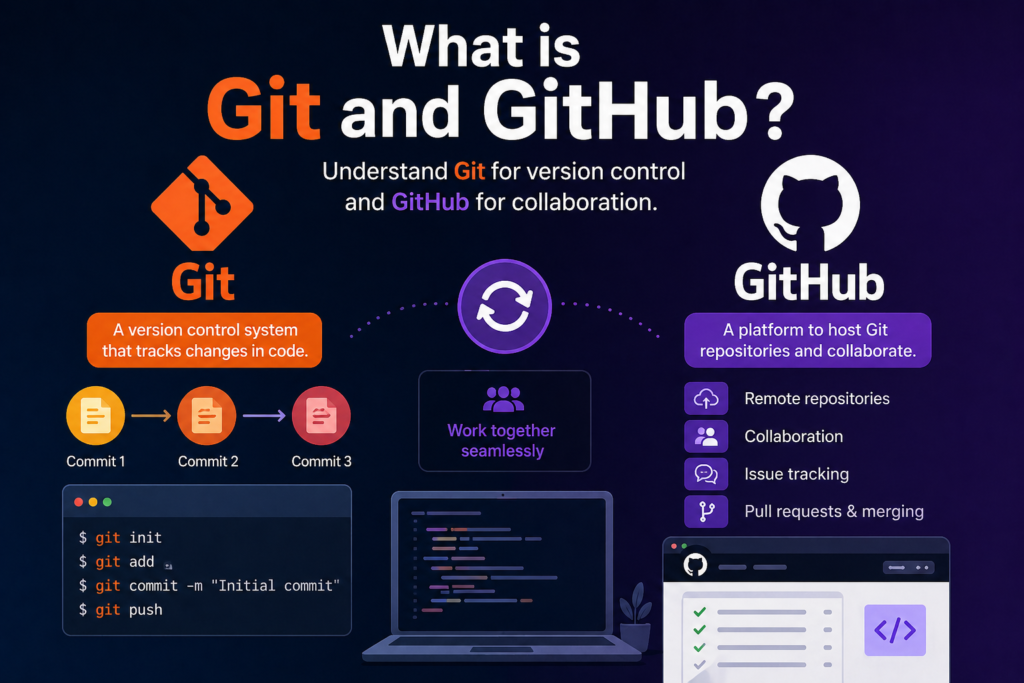
Git is a Version Control System (VCS). Specifically, it is a “distributed” version control system created by Linus Torvalds (the same guy who created Linux) in 2005.
Think of Git as a highly sophisticated time machine for your code. It lives locally on your computer and tracks every single change you make to your files. If you delete a paragraph of code on Tuesday and realize on Friday that you actually needed it, Git allows you to “roll back” the clock and recover that data instantly.
How Git Works in Plain English
When you use Git, you take “snapshots” of your project. In Git terminology, these snapshots are called Commits.
- You write some code.
- You tell Git: “Hey, save this moment.”
- Git records exactly what the files looked like, who saved it, and a message explaining why.
What is GitHub? (The Social Network)
If Git is the time machine, GitHub is the museum and meeting place where all those time machines are stored and shared.
GitHub is a cloud-based hosting service that lets you manage your Git repositories online. While Git is a command-line tool that lives on your PC, GitHub is a website with a beautiful interface that allows for collaboration.
The Key Difference:
- Git: The tool you use locally to track changes.
- GitHub: The online platform where you upload your Git projects to share with others or back them up.
💡 Pro Tip: Think of Git like Microsoft Word (the tool you use to create the content) and GitHub like Google Drive or Dropbox (the place where you store and share that content).
Why is it Important?
You might be wondering, “I’m just one person coding by myself. Do I really need this?” The answer is a resounding yes.
1. Collaboration
Modern software is too big for one person. Teams need to work on the same codebase simultaneously. Without Git, they would constantly overwrite each other’s work. Git uses “Branching” to let everyone work in their own “parallel universe” before merging their changes back together.
2. The “Undo” Button
We’ve all had that moment where we change one line of code and the entire application breaks. With Git, you don’t have to panic. You can compare your current broken state with the last working version and see exactly what changed.
3. Portfolio Building
For developers, GitHub is your resume. When you apply for a job, recruiters don’t just want to hear that you know how to code; they want to see your “green squares” (your contribution history) and read the actual code you’ve written.
4. Open Source Contributions
GitHub is home to millions of open-source projects. Want to contribute to the tools used by NASA or Facebook? You can “fork” their code, make an improvement, and send it back to them.
Core Concepts Explained Step-by-Step
To master what is Git and GitHub, you need to understand the lifecycle of a project. Let’s walk through the “Git Flow.”
1. The Repository (Repo)
A repository is simply a folder that Git is tracking. It contains all your project files and the history of every change made to them.
2. Staging Area (The Loading Dock)
Before you commit a change, you “add” it to the staging area. Think of this like a loading dock. You’ve packed the boxes (edited the files), but you haven’t put them on the truck (the commit) yet. This allows you to pick and choose which changes you want to save.
3. Committing (The Snapshot)
When you commit, you are officially recording the changes to the history. Every commit has a unique ID (a SHA hash) and a commit message.
4. Branching (Parallel Realities)
Imagine you want to try a risky new feature, but you don’t want to break the “main” version of your app. You create a Branch. You can experiment freely there. If it works, you Merge it back to the main branch. If it fails, you just delete the branch.
5. Pull Requests (PRs)
This is a GitHub-specific concept. When you want to merge your changes into a project (especially one owned by someone else), you submit a Pull Request. This tells the owner: “Hey, I’ve made some changes. Would you like to pull them into your project?”
Practical Examples: Your First Git Commands
Let’s get hands-on. If you were starting a project today, these are the commands you would use.
Setting Up
First, you tell Git who you are:
git config --global user.name "Your Name"
git config --global user.email "youremail@example.com"
Starting a Project
Navigate to your project folder and initialize it:
git initThis creates a hidden .git folder. Git is now watching you!
Saving Changes
Let’s say you created a file called index.html. To save it:
# 1. Add the file to the staging area
git add index.html

# 2. Commit the change with a message
git commit -m "Add initial HTML structure"
Sending to GitHub
Once you create a repository on GitHub.com, you connect your local project to the cloud:
git remote add origin https://github.com/yourusername/your-repo.git
git push -u origin main
Common Mistakes to Avoid
Even seasoned pros make mistakes. Here’s what to look out for:
- Committing Large Files: Git is for source code, not 2GB video files or high-res images. Use .gitignore to tell Git which files to ignore.
- Vague Commit Messages: Avoid messages like “fixed stuff” or “updated files.” Use descriptive messages like “Fix login bug by validating email input.”
- Working on the Main Branch: For anything other than a tiny fix, always create a new branch. This keeps your “Production” code safe.
- Forgetting to Pull: Before you start working, always run git pull. This ensures you have the latest changes from your teammates so you don’t run into “Merge Conflicts.”
Pro Tips & Best Practices
The Secret of Small Commits
Don’t wait until the end of the day to commit 50 changes. Commit often! Small, frequent commits make it much easier to find exactly where a bug was introduced.
Use a .gitignore File
Every project should have a .gitignore. This file lists the names of files and folders you don’t want Git to track (like passwords, API keys, or temporary system files).
💡 Pro Tip: Never, ever commit a file containing a password or an API key to GitHub. There are bots constantly scanning GitHub to steal this data!
Learn the “Squash”
If you have ten tiny commits like “typo fix,” “another typo,” “fixed typo again,” you can “squash” them into one clean commit before merging. It keeps the project history looking professional.
Real-World Use Cases
1. The Solo Developer
A developer building a personal portfolio uses Git to track their progress. When they accidentally delete their CSS file at 2 AM, they simply use git checkout to bring it back from the last commit.
2. The Massive Tech Company
At a company like Google, thousands of engineers work on the same code. They use Git to manage “Merge Conflicts”—situations where two people changed the exact same line of code. Git highlights the conflict and lets the humans decide which version is better.
3. The Student Group Project
Students working on a mobile app use GitHub to divide tasks. One student works on the “Login” branch, another on the “Profile” branch. When they are done, they use Pull Requests to review each other’s code before combining it.
Mini Project: Your First GitHub Contribution
Ready to try it? Follow these steps to create your first online repository.
- Sign Up: Go to GitHub.com and create a free account.
- Create a Repo: Click the + icon in the top right and select “New repository.” Name it my-first-git-project.
- Create a File: In the GitHub interface, click “Create new file.” Name it README.md.
- Write Content: Type “This is my first project using Git and GitHub!”
- Commit: Scroll down, write a commit message (“Initial commit”), and click “Commit new file.”
Congratulations! You have officially started your journey as a version-controlled developer.Frequently Asked Questions (FAQs)
1. Is Git only for programmers?
Not at all! Writers, designers, and even lawyers use Git to track versions of text documents. However, it is most popular in the tech industry.
2. What is a “Merge Conflict”?
This happens when Git gets confused. If you and your friend both change line 10 of a file in different ways and try to merge, Git says: “I don’t know which one to keep.” You have to manually open the file and pick the winner.
3. Is GitHub free?
Yes! GitHub offers free unlimited public and private repositories. They charge for advanced features for large enterprises, but for individuals, it’s completely free.
4. What is the difference between git clone and git pull?
- git clone: Used only once to download a project from GitHub to your computer for the first time.
- git pull: Used regularly to update your local files with new changes that were uploaded to GitHub by others.
5. Can I use Git without GitHub?
Yes. You can use Git locally on your computer forever without ever touching the internet. GitHub is just the place where you store your Git history online.
Conclusion
Understanding what is Git and GitHub is like learning how to use a hammer and nails before building a house. You can try to build without them, but it’s going to be messy, fragile, and difficult to do with others.
Git gives you the freedom to fail. It gives you the confidence to experiment, knowing that your previous work is always safe. GitHub gives you a community, a portfolio, and a seat at the table of global software development.
Now that you have the theory down, the best way to learn is by doing. Go to your terminal, type git init, and start your first project. The “Future You” will thank you for the snapshots you take today!
Start practicing now! Check out our next guide on “Mastering the Command Line” to supercharge your workflow.